Note: The Configure Jobs command operates in conjunction with CygNet Dispatch. For more information about the CygNet Dispatch product, contact your Account Manager or CygNet Sales.
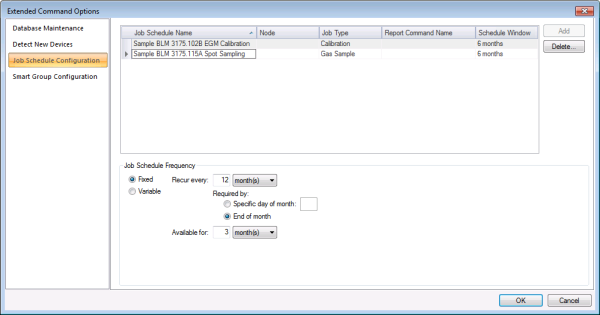
Use the Job Schedule Configuration page of the Extended Command Options dialog box to configure details for job schedules that can be utilized by the Schedule Jobs command.
Note: The definition of the Schedule Jobs command resides in FMS, but you can also use CygNet Explorer (MSS service) to schedule the command. Scheduling a Schedule Jobs command in the MSS will ensure that new jobs are added regularly. See Scheduling FMS Command Tasks in the MSS for more information.
You must have proper security authorization to configure Job Schedules. See FMS Security Events (and JOB security event) for information about configuring security access to extended command options.
See Running Node Commands for more information about running the configured command via FMS Explorer.
See Schedule Jobs for more information about additional options for using the command.
Job schedules are utilized by Schedule Jobs commands to auto-generate jobs for CygNet Dispatch. Configure job schedules from the Commands menu, using the Extended Options button to access the job schedule configuration page. Each job schedule is based on user-defined parameters and an associated job frequency (fixed or variable). When Schedule Jobs commands are run, one or all of the job schedules are utilized, as indicated in the command parameters, to create and schedule jobs that meet the defined criteria. The jobs become available in CygNet Dispatch when it is synced with the service. See Schedule Jobs for more information.
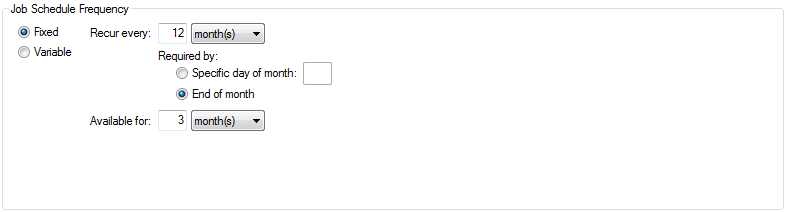
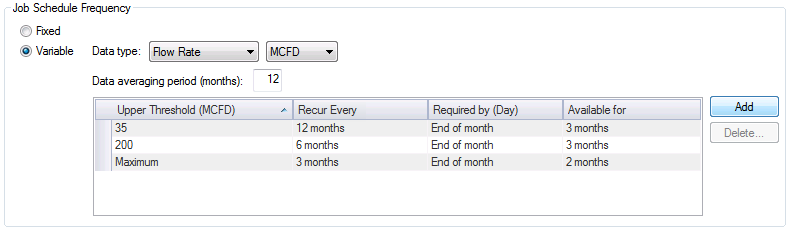
Create or delete job schedules in the top section of the configuration pane, and define job schedule frequency for a selected schedule in the bottom section. Each schedule contains user-supplied properties (Job Schedule Name, Node, Schedule Window, etc.) that define the scheduled jobs that will be created when a Schedule Jobs command is run using that schedule. For each schedule listed, define its job frequency in the bottom section of the configuration pane to specify when each job will be required, how long the job will be available, and what specific recurrence pattern (Fixed frequency) or data values (Variable frequency) to use when scheduling jobs for CygNet Dispatch.
Possible values for job schedule properties are as follows.
| Property | Description |
|---|---|
|
Type in a Job Schedule Name to identify each new schedule. Allowable characters (maximum of 20) are A-Z, a-z, 0-9, . (period), #, $, &, (, ), +, -, \, /, :, <, >, =, @, [, ], ^, {, }, _ (underscore), !, ~ (tilde). Spaces are acceptable, when they are not leading or trailing. This property is required. |
|
|
Type in a Node name, or click ... to access the Select Node chooser to select a Node to create jobs for using this schedule. This property is required. |
|
|
Select the Job Type for the jobs created by this schedule, from the drop-down menu. Options are as follows.
Note: Job types are configured in CygNet Dispatch or in FMS Explorer via this interface. This property is required. |
|
|
Select an existing Report Command Name from the available choices in the drop-down menu. The job report template specifies the associated job report command name that is run to publish job information associated with the selected Node and time range. See Job Report Commands or Late Job Report Commands for more information. This property is required. |
|
|
Click to access the Select a Schedule Window dialog box to specify the length of time you want to schedule jobs ahead when the Schedule Jobs command is run using this schedule. The schedule time window begins when the command is executed. Specify the time window value in weeks, months, or years. For recurrences with units of month(s) or year(s), the cycle begins on the day of the month defined in the job schedule frequency as the "Required by" day. Note:Coordinate the Schedule Window value you enter here with the recurrence value of the Schedule Jobs command configured in the MSS, to ensure constancy of scheduled jobs over time and to avoid leaving time periods that are unavailable for scheduling jobs. This property is required. |

Use the following steps to create and configure Job Schedules for FMS Schedule Jobs commands.
To Configure a Job Schedule
Use the Delete button to remove existing job schedules. When a job schedule is deleted from the list, all jobs associated with that schedule, if they are not yet in a 'completed' state, are deleted as well.
Ensure that the selected job schedule, and any incomplete jobs scheduled using it, are no longer needed before deleting a job schedule from the system. To delete, select a job schedule in the list, and then click Delete to remove it. A confirmation dialog appears to make sure you want to make the deletion.
More:
 Configuring Job Schedule Frequency
|
|
|

